Using the console
A short tour. Every screen is described in detail in the user guide.
The one thing to know first
When you save a classification change, NexusPuppet writes a file for each affected node within seconds. Your Puppet server reads that file on the node's next Puppet run. So a saved change says queued, not done — that is normal. The console also reads PuppetDB on a schedule rather than live, so a node that checked in a moment ago can take a few minutes to appear.
Dashboard
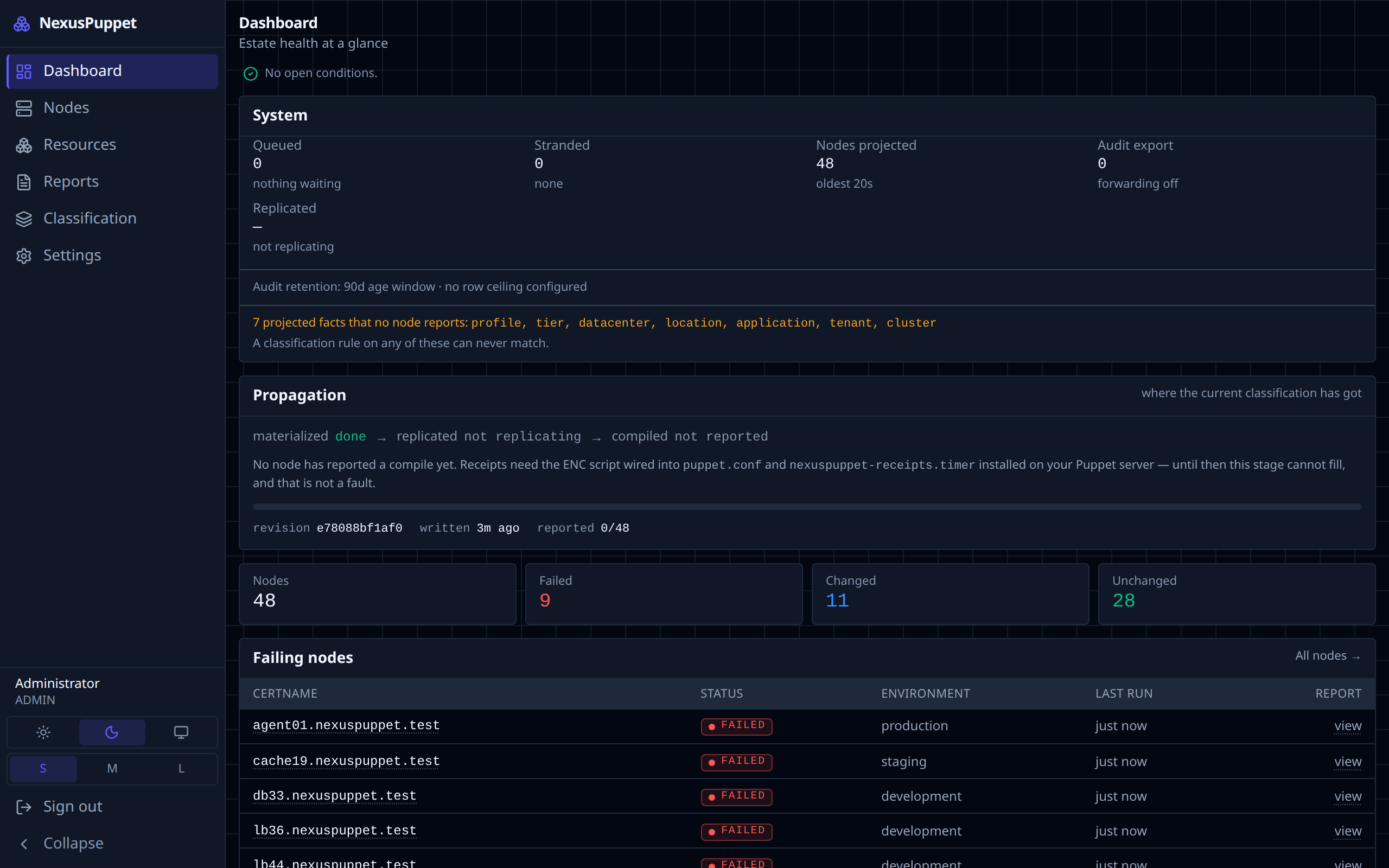
How many nodes there are, how their last runs went (failed, changed, unchanged), and a list of failing nodes linking straight to each one.
Nodes
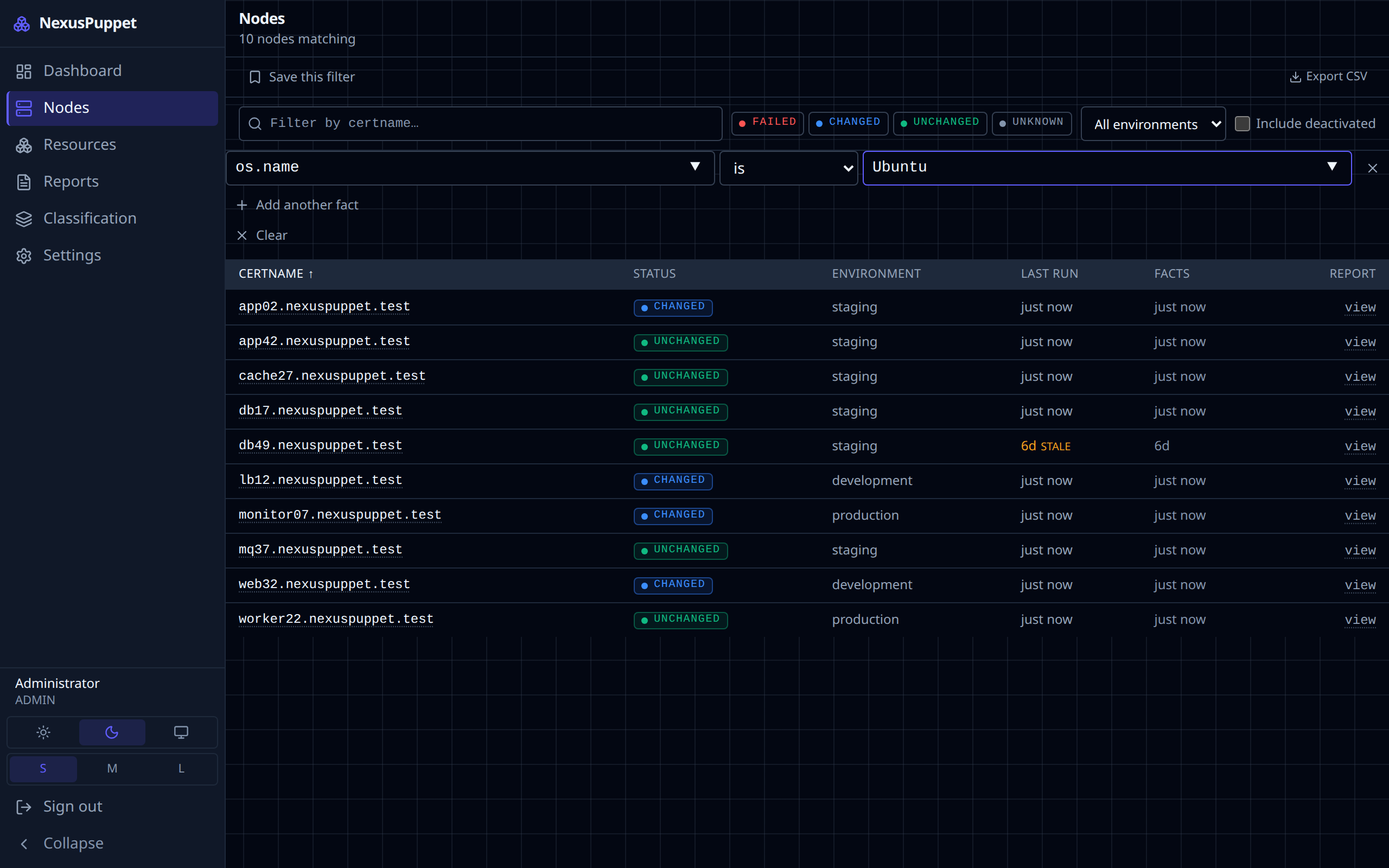
Every node PuppetDB knows about. You can:
- Filter by fact — for example
os.nameequalsUbuntu. The value box suggests what your estate actually reports. - Filter by certname, status (failed, changed, unchanged, unknown) and environment.
- Save this filter to reuse it. Saved filters are private unless you tick Share; colleagues only see a shared filter if they are allowed to run it.
- Export CSV — the whole filtered list, not just the page on screen.
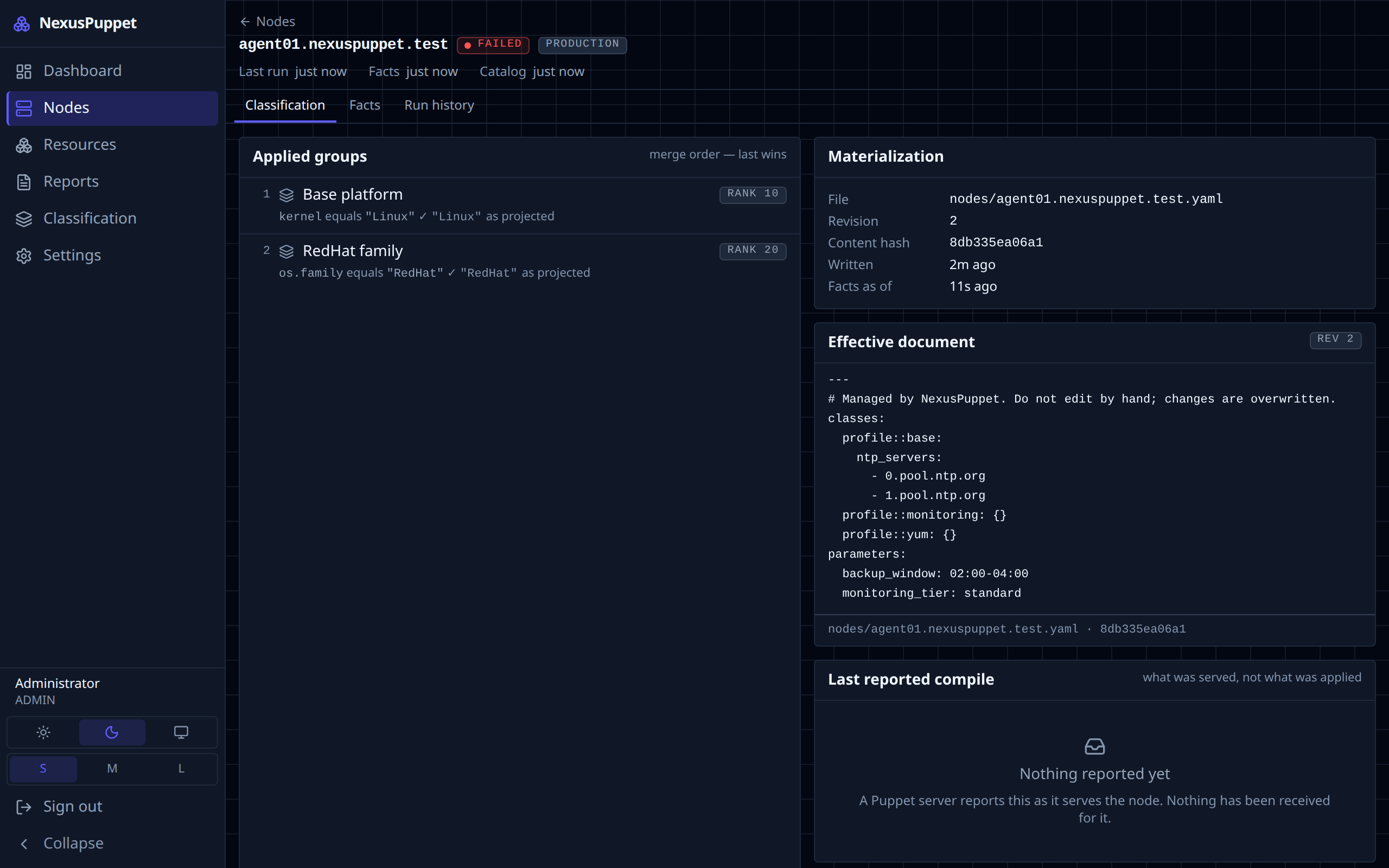
Open a node to see its facts, its recent runs, and its classification: which groups it belongs to, in which order, and what file was written for it.
Run reports
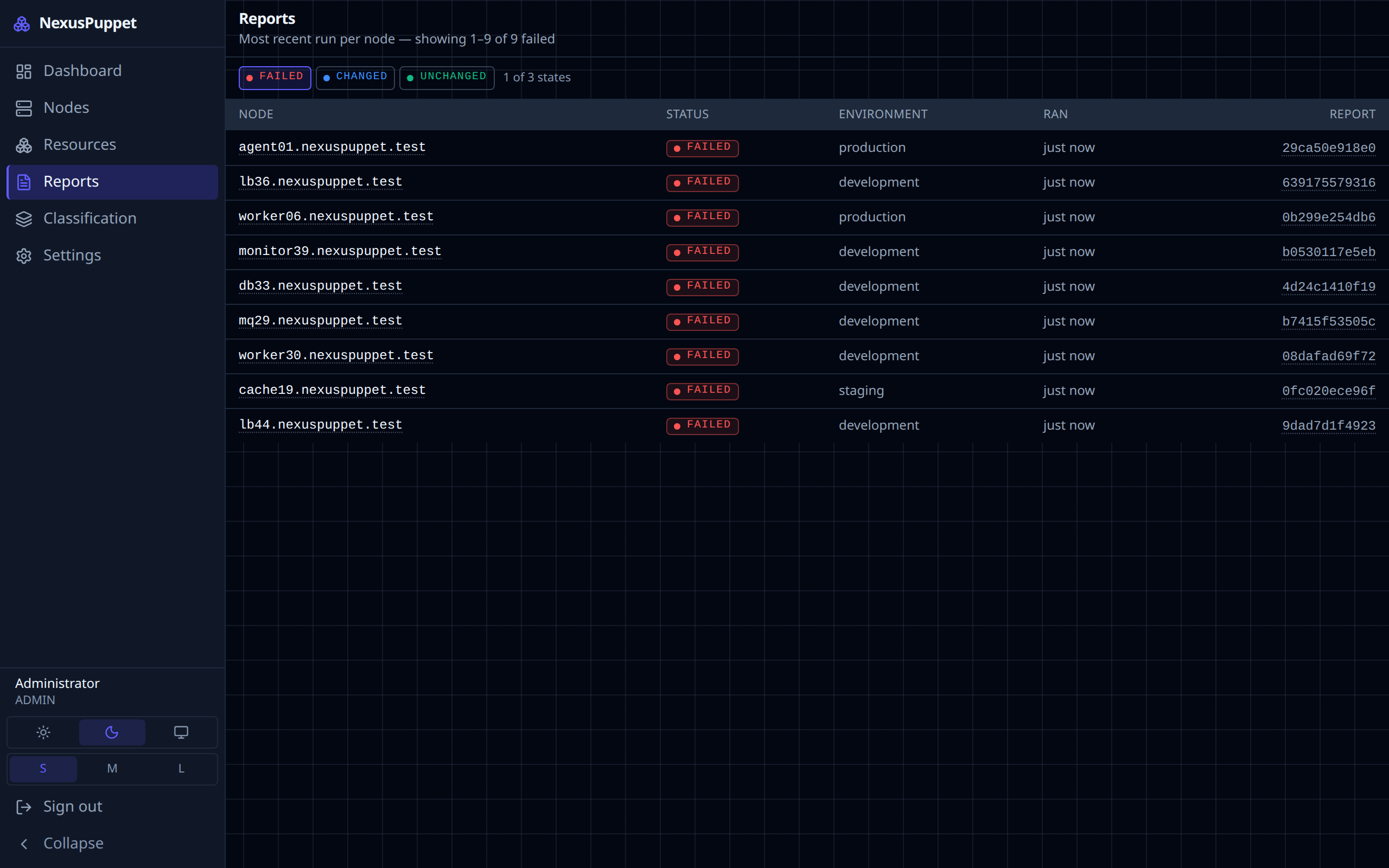
Recent Puppet runs across the estate. Open one to see every resource Puppet changed, failed or skipped. For a failure, read the message and the containment path — the chain of classes that declared the resource, which usually points at the manifest to fix. Skipped resources are a side effect of a failure, not failures themselves.
Classification
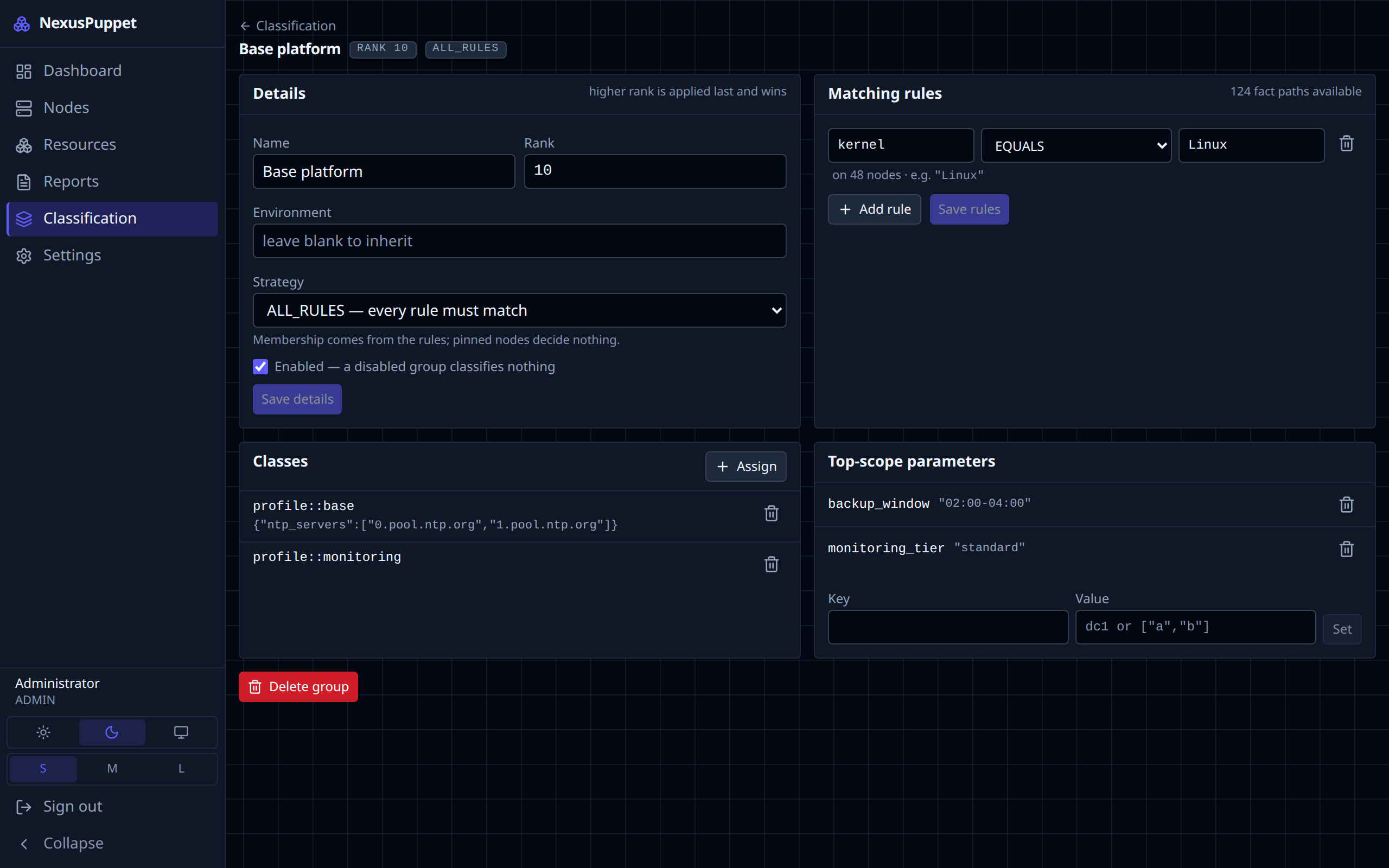
Classification decides which Puppet classes each node receives. It is organised in node groups. A group has:
- Matching rules — which nodes belong, written against facts (
os.familyequalsRedHat,networking.fqdnmatches^web). Use structured fact names such asnetworking.fqdn; Puppet 8 and OpenVox no longer report the old flatfqdn. - Pins — specific nodes added by name, whatever the rules say.
- Classes and parameters — what members get, such as
profile::nginxwithworker_processes: 4. - Rank — when two groups set the same parameter, the higher rank wins. Classes from every matching group are combined; a parameter value is replaced as a whole, never merged.
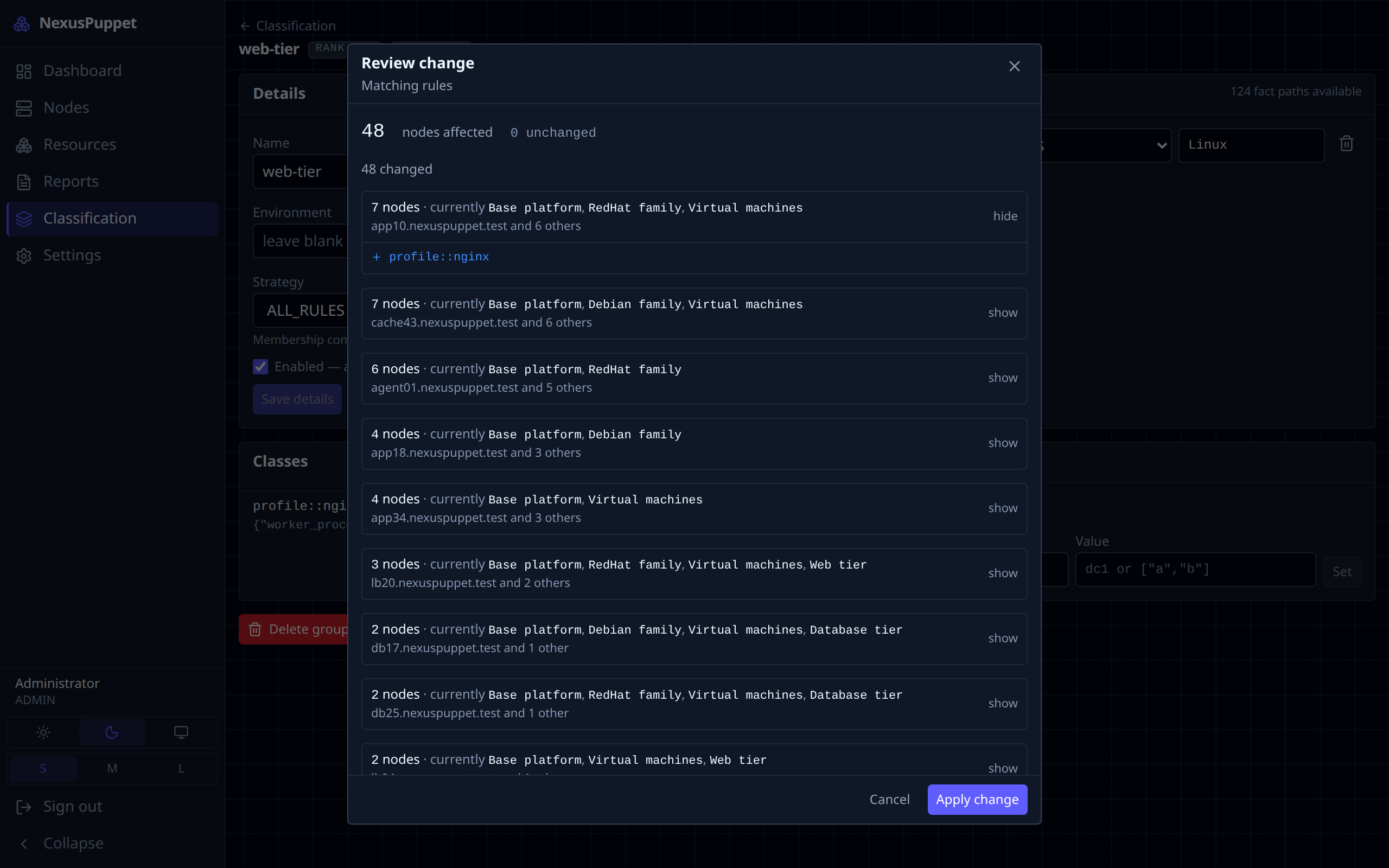
Every change is previewed
Whatever you edit, Save opens a review first: how many nodes are affected, what changes on them (grouped by outcome, with an example node for each), and whether the change makes one group start overriding another. Cancel is the default button. Nothing is written until you apply.
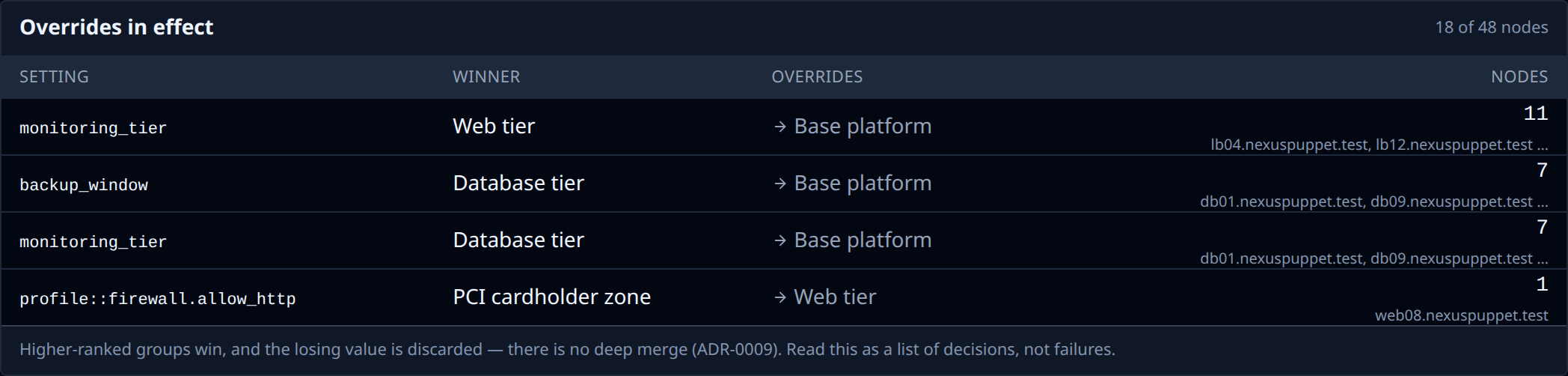
Overrides in effect
The Classification page lists every place where one group is overriding another's value, and on how many nodes. Overriding a base group is often intended; this makes it visible. If a parameter you set "has no effect", look here first — a higher-ranked group is probably setting it too.
Resources: do these nodes agree?
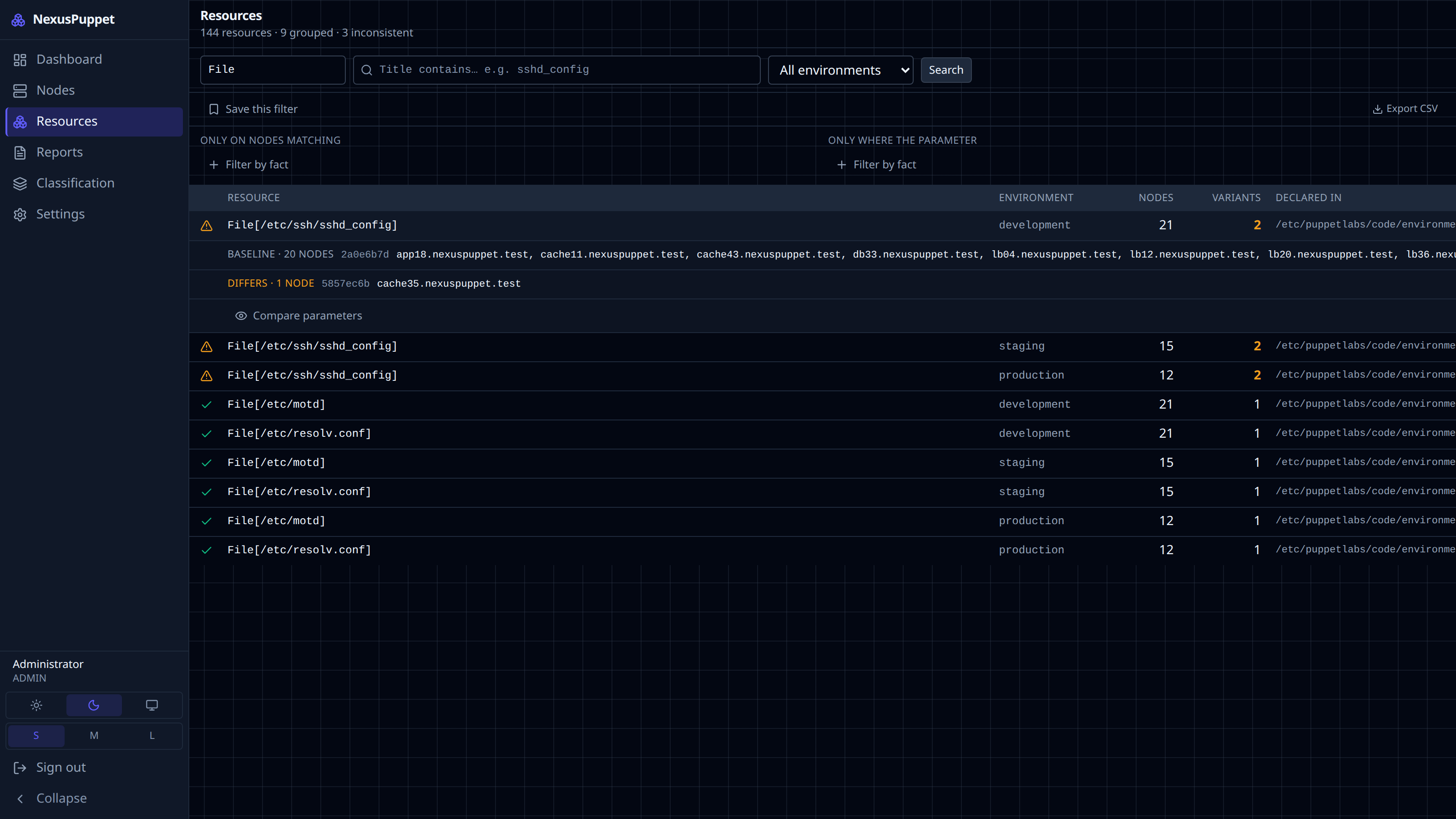
Resources searches what nodes actually received in their catalogs. Pick a type (File, Package, Service) and optionally a title. Each resource shows how many variants exist among the nodes that have it: one variant means every node is identical; more than one means some differ, and expanding the row names them. Compare parameters shows exactly what differs.
Seeing resource parameters needs the resources:read permission, because a managed file's content can contain a password. Every parameter view is recorded in the audit log. Searches can be saved and exported, like node filters.
Settings
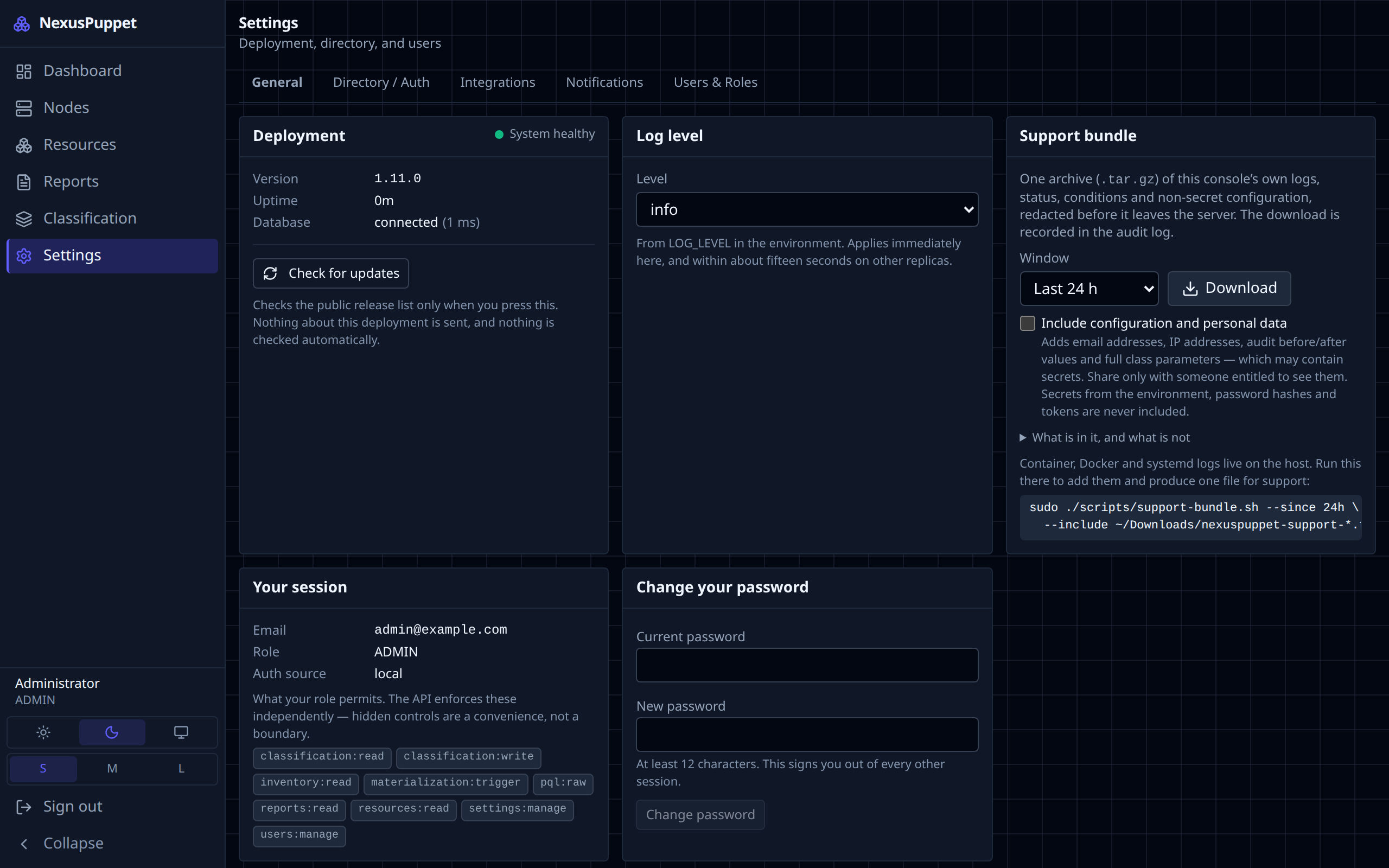
Under Settings, everyone can change their own password (General). Administrators also manage Directory / Auth (LDAP, Active Directory, single sign-on — see Sign-in & users), Integrations (forwarding the audit log to syslog or a webhook), Notifications, and Users & Roles. General also holds the Support bundle — see Troubleshooting & support.