Sign-in & users
People sign in with a local account (a password kept by NexusPuppet), a directory account (LDAP or Active Directory), or single sign-on (OIDC — Entra ID, Okta, Keycloak and others). You can use all three at once. Local accounts always keep working, whatever you do with a directory.
The rule that catches everyone: NexusPuppet does not create accounts on first sign-in. Every person needs an account in Settings → Users & Roles before they can sign in — including directory and single sign-on users. Without one, a correct password is refused with the same message as a wrong one. Create the account first, with Authentication set to
ldaporoidc.
Roles
| Role | Can |
|---|---|
| VIEWER | Read everything: nodes, facts, reports, classification |
| OPERATOR | Everything a viewer can, plus change classification |
| ADMIN | Everything, including users and settings |
These three are fixed. To make your own, duplicate one in Settings → Users & Roles and change its permissions.
Local accounts
Add someone: Settings → Users & Roles → New user. Enter their email, a display name, a role and a first password. Send them the password through a safe channel and ask them to change it.
Change your own password: Settings → General → Change your password. This signs you out everywhere else.
Reset someone else's password: an administrator opens Settings → Users & Roles and uses the key button on that person's row to set a new one. Directory and single sign-on users change their password in the directory, not here.
Locked out after too many attempts? The lock lifts by itself after a while, or another administrator can reset the password.
Two safety rules: you cannot delete or deactivate your own account, and you cannot remove the last active administrator.
Forgotten administrator password
If another administrator can sign in, they can set a new password for you as above. If nobody can, reset it on the server, from the install directory (usually /opt/nexuspuppet):
sudo ./scripts/deploy.sh --reset-admin admin@example.com
It asks for the new password twice, without showing it. It works even when the API is down. It sets the password, unlocks and reactivates the account, ends its sessions, and records user.password.reset in the audit log. It is for local accounts only; directory and single sign-on users reset their password in the directory.
Available from the release after v1.11.0. The command lives in the console's image, so on a server last upgraded to v1.11.0 or earlier, run the upgrade once first — it rebuilds the image and needs no login — then run the command:
sudo ./scripts/deploy.sh
sudo ./scripts/deploy.sh --reset-admin admin@example.com
If you skip that, the command says so before asking for a password, and changes nothing.
Connect LDAP or Active Directory
Everything happens in the console. There is no file to edit and nothing to restart.
- Be on 1.11 or later, installed with
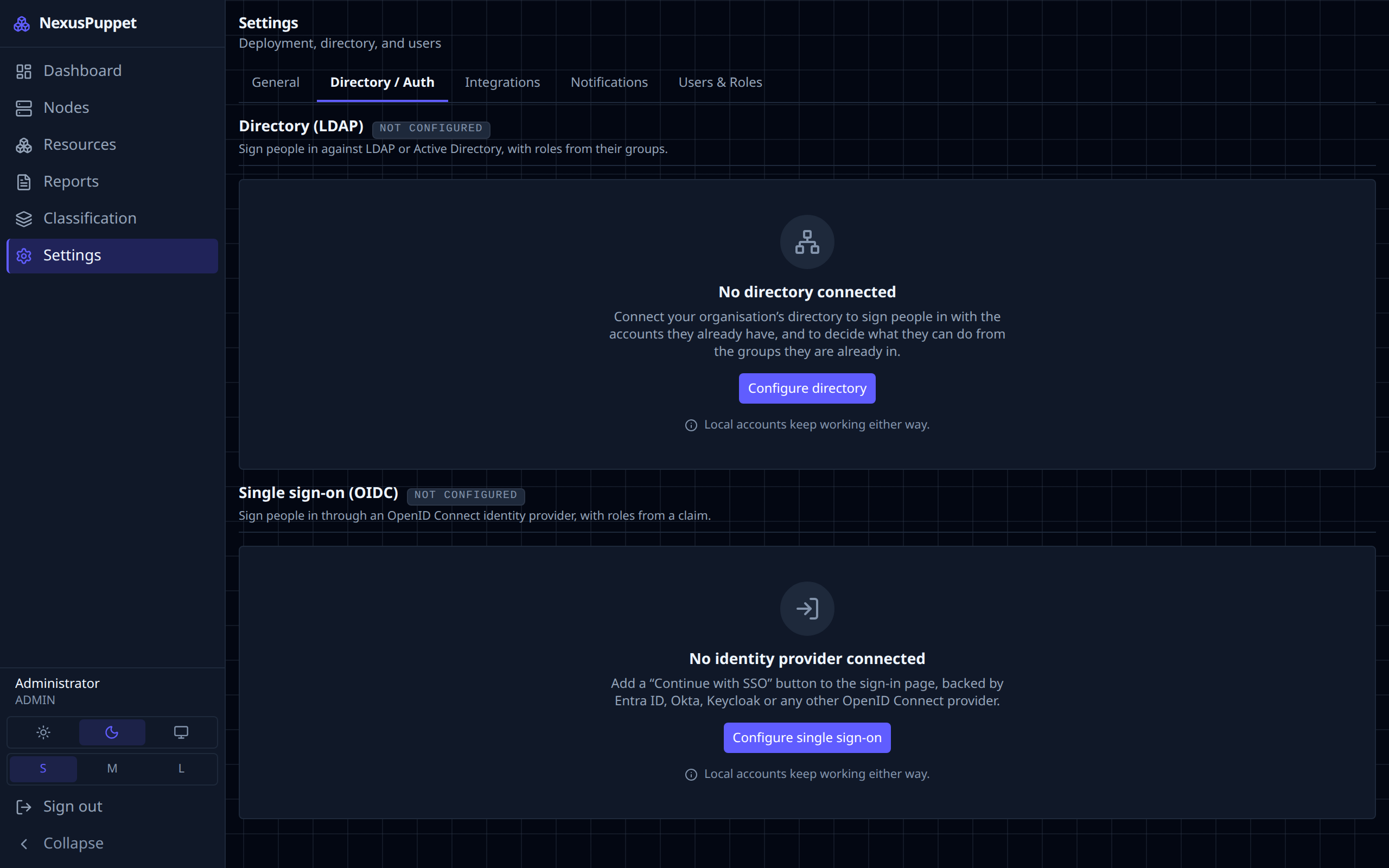
scripts/deploy.sh. It adds theCONFIG_ENCRYPTION_KEYthe console needs to store the bind password (see Install & upgrade). If the page says Saving a bind password needs CONFIG_ENCRYPTION_KEY, re-run./scripts/deploy.sh. - Open Settings → Directory / Auth. The Directory (LDAP) section says Not configured. Click Configure directory.
- Fill in the connection:
- Server name or IP — use the server's name, exactly as it appears on its certificate:
dc01.example.com. The certificate is checked against it, so an IP address only works if the certificate lists that IP — domain controller certificates rarely do. Noldaps://, no port. - Protocol — how the connection is encrypted. There is no unencrypted option.
- LDAPS: TLS from the first byte. Usually port 636 (3269 for an AD Global Catalog).
- STARTTLS: connects on the plain LDAP port, usually 389 (3268 for a Global Catalog), and switches to TLS before anything else is sent. If the server will not switch, nothing is sent and the test says The server refused STARTTLS.
- Port — fills itself in from the protocol (636 or 389). Type your own and it stays.
- Bind type — how NexusPuppet finds people:
- Regular (default): a service account finds each person, who then signs in as themselves. Fill in User DN — the service account, such as
cn=nexuspuppet-svc,ou=Service Accounts,dc=example,dc=com— and its Password. -
Simple: no service account; each person signs in directly. Fill in User DN pattern. People sign in with their email address, and the pattern says how to turn it into the identity the directory checks:
{email}is the whole address,{username}the part before the@.- Active Directory:
{email}— the address is the user's UPN (alice@corp.example.com). If people's email domain differs from the UPN suffix, use{username}@corp.local. - OpenLDAP:
uid={username},ou=People,dc=example,dc=com(orcn={email},…if entries are named by address).
People must be allowed to read their own entry. With
{username}, an entry that has amailattribute must carry the address signed in with, soalice@one.examplecannot use the entry ofalice@two.example. - Anonymous: people are found without signing in, then sign in as themselves. The directory must allow anonymous search. - Directory type is not something you choose. It is read from the server (Detected: Active Directory or OpenLDAP) when you test or save. - Leave Verify the directory's TLS certificate on. - CA certificate (PEM) — paste the certificate of the CA that signed the directory's certificate, from-----BEGIN CERTIFICATE-----to-----END CERTIFICATE-----. Include intermediates if there are any. It is public; never paste a private key. Not needed if the directory's certificate comes from a public CA. It is used for LDAPS and STARTTLS alike. 4. Fill in Search base — where your users are, such asdc=example,dc=com. Group search base is optional. 5. Under Role mappings, map at least one directory group to a role, for examplecn=puppet-admins,ou=Groups,dc=example,dc=com→ADMIN. A user in none of the mapped groups is refused. There is no default role for LDAP. 6. Click Test connection. It connects, reads what kind of directory this is, and binds and searches with what you typed, without saving. (With Simple there is no service account to search with, so the test stops at connecting.) Fix anything it reports — see When the test fails. 7. Click Save. It applies from the next sign-in; the badge changes to Saved in the console, and Directory type shows what was detected. 8. Create the accounts. In Settings → Users & Roles → New user, enter each person's email — it must match theirmailattribute in the directory — and set Authentication toldap. No password. The role you pick is replaced at each sign-in by what their groups map to. 9. Sign in. Everyone types the email address of their NexusPuppet account — the one you entered in step 8. On Active Directory that is usually their UPN (jdoe@example.com). A bare username such asjdoeis not an account, so it is refused. - Active Directory:
- Regular (default): a service account finds each person, who then signs in as themselves. Fill in User DN — the service account, such as
- Server name or IP — use the server's name, exactly as it appears on its certificate:
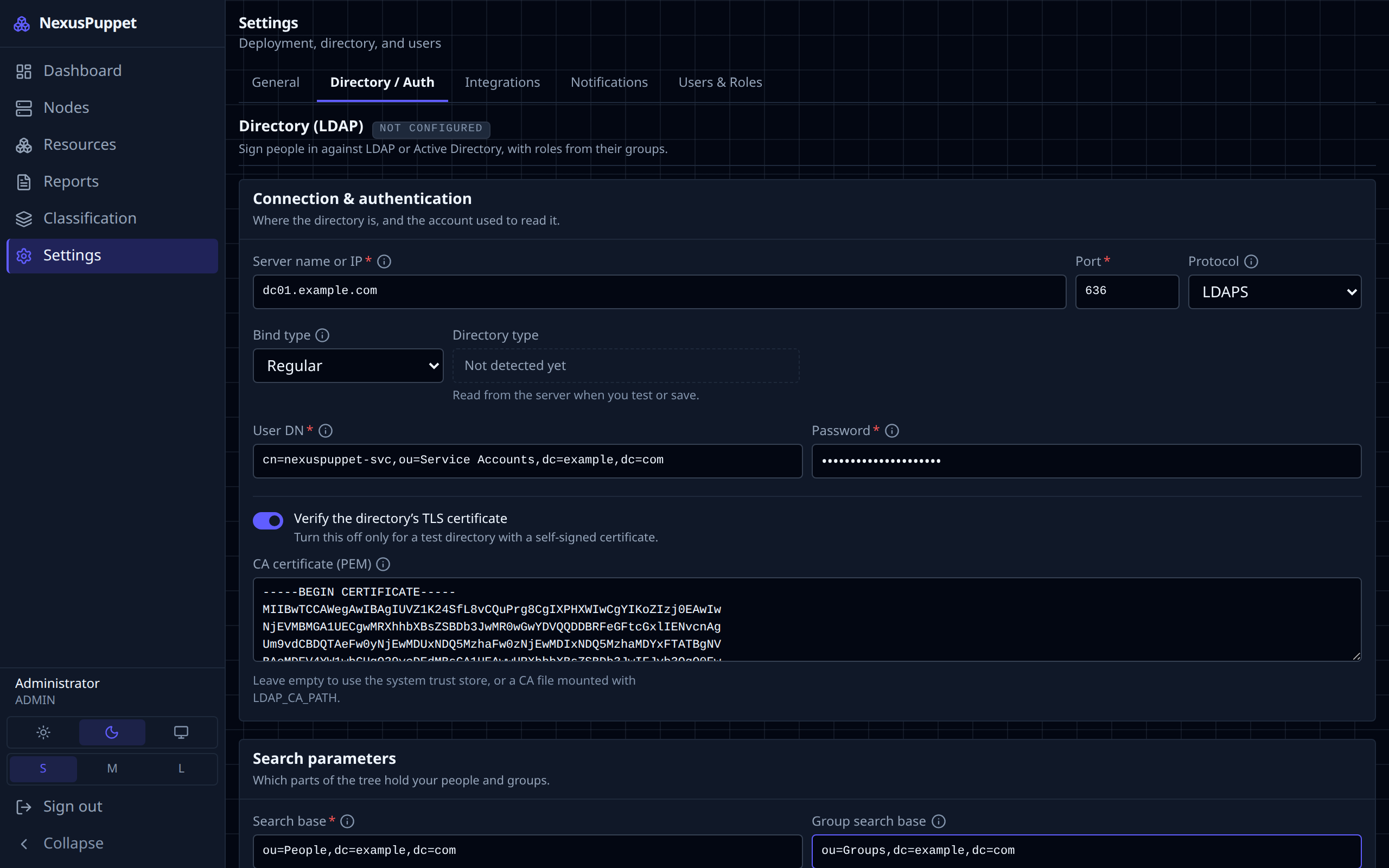
Configured before 1.13? Your settings keep working unchanged and open in the new fields. One saved with an unencrypted ldap:// URL shows Protocol as Unencrypted (legacy); it still signs people in, but to save any change you must choose LDAPS or STARTTLS.
You can create accounts before the directory is configured; the dialog marks the source not configured yet, and those people can sign in once you save. The login page only offers a directory once it is configured.
To undo, open the form and use Discard stored settings. Directory users are then refused at their next sign-in; local accounts are unaffected.
Connect single sign-on (OIDC)
- Register NexusPuppet with your identity provider. The redirect URI is
https://<your console>/api/auth/callback. - Open Settings → Directory / Auth, find Single sign-on (OIDC), and click Configure single sign-on.
- Enter the Issuer, Client ID, Client secret and the same Redirect URI. Check the Claims that carry email, display name and groups.
- Map group claim values to roles under Role mappings, or set a Role for everyone else.
- Test, then Save. The login page now shows a single sign-on button.
- Create each person's account with Authentication set to
oidc, as above.
On Entra ID, limit the groups claim to the groups assigned to the application. Entra stops sending groups for people in more than about 150 of them, and those users are refused. More in DEPLOYMENT.md.
Configuring from .env instead
The LDAP_* and OIDC_* variables in .env still work, and need an API restart to change. Settings saved in the console take precedence over them. DEPLOYMENT.md has the details.